Building a Desktop Time Tracking App: A Behind-the-Scenes Story
"My team works remotely. How do I know how much time is actually spent on each project?"
This simple question turns out to hide technical challenges that go far deeper than a Start and Stop button.
In this article, I share my experience building a desktop time tracking app: a work-hour tracker that runs on employees' computers (Windows and macOS), records work duration accurately, captures periodic screenshots, and keeps working even when the internet connection drops. My goal in writing this is simple: to show how a business idea that sounds easy gets translated into a reliable product.
Note: This article is written as a product development case study. The client and product names are intentionally withheld for confidentiality.
The Problem to Solve
Many companies with remote teams face the same challenges:
Measuring work time objectively is hard. Manual reports are easily forgotten and inconsistent.
No visibility into which projects consume the most time. As a result, client billing and team capacity planning are based on guesswork.
A web app alone is not enough. Browsers get closed, laptops go to sleep, and the internet drops. All of these make time records inaccurate.
The solution: a time tracking app that lives on the user's computer, works quietly in the background, and records time honestly, even under less-than-ideal conditions.
Key Features
In everyday terms, here is what the app can do:
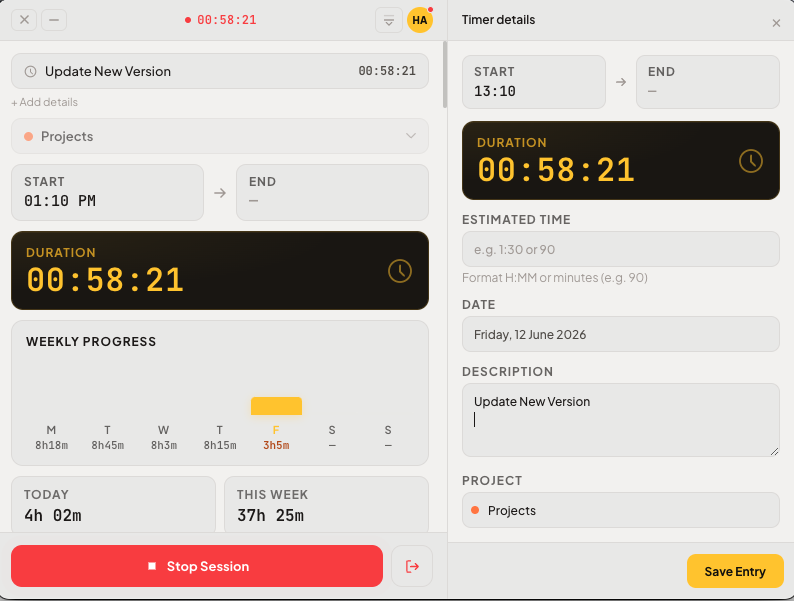
One-click timer. Pick a project, click start, and the clock runs. Click stop when you're done.
Stays accurate even when the laptop sleeps. When the computer enters sleep mode or the app window is hidden, the timer doesn't die or miscount.
Offline mode. Internet down? No problem. Data is stored safely on the computer and automatically synced to the server once the connection returns.
Automatic screenshots. The app takes periodic screen captures as activity evidence, with the user's knowledge, then stores them securely in cloud storage.
Daily and weekly summaries. Users instantly see their total working hours.
Automatic updates. New versions install themselves without users having to download anything manually.
The Interesting Technical Challenges (Explained Simply)
This is the part that made the project both challenging and fun. Here are some of the "traps" that had to be handled.
1. A Timer That Must Never Die
The biggest challenge: the timer has to keep running correctly even when the app window is hidden or the computer goes to sleep.
The solution: the timer doesn't run in the display layer (the part users see), but in the app's "core engine" that keeps working in the background. Think of it like a car engine: the dashboard lights can go off, but the engine keeps running. This approach ensures time is recorded accurately under any condition.
2. Counting Time Honestly (No "Ghost Hours")
Imagine someone starts the timer, then closes their laptop and goes home. The next morning, they open the laptop again. Should the 16 hours the laptop was closed count as work time? Of course not.
I built a mechanism that detects "dead gaps", the periods when the computer is truly asleep or force-shut, and excludes them from work time. Without this, reports would be full of misleading "ghost hours."
3. Crossing Midnight
What happens when someone works overtime past 12:00 AM? Time records must not "leak" into the next day incorrectly. The app automatically closes yesterday's record exactly at midnight and opens a new one for today, keeping daily reports clean and accurate.
4. Reliable Offline Mode
Internet connections aren't always stable. So work data is always saved first on the user's computer in a small local database, then sent to the server in order. If a transfer fails, no data is lost. It waits in a queue and retries later. Users don't even notice the process.
5. Data Security
Login tokens and sensitive data are encrypted using the operating system's built-in security, never stored as plain text. The app's interface is also isolated from direct access to the computer's system, following modern security practices for desktop applications.
The Tech Stack
For those curious about the "kitchen," here are the main tools I used and what each one does:
Technology | What It Does |
|---|---|
Electron | Builds one desktop app that runs on both Windows and macOS. |
React + TypeScript | Creates an interactive interface with clean, low-error code. |
Vite | Keeps the development process fast and lightweight. |
SQLite | A small database on the user's computer for storing data while offline. |
Zustand | Manages the app's "state" (e.g., whether the timer is running) in a simple way. |
electron-updater | Delivers automatic updates to users. |
Vitest | Runs automated tests so features keep working after every change. |
In short, this combination lets a single codebase produce a desktop app that is stable, fast, and easy to maintain across two operating systems.
Lessons Learned
Simple features often hide complexity. A "Start/Stop" button looks easy, but making it accurate under every condition is the real work.
Assume the worst. Internet outages, closed laptops, app crashes. A good product must protect user data in all of those scenarios.
Accuracy is the foundation of trust. For a time tracking app, one wrong number can erase a user's trust in the entire system.
Have a Similar Need?
If your business needs a desktop application, whether it's time tracking, a productivity monitoring tool, or an internal app that must keep running offline, I'd be glad to help bring it to life, from idea to finished product.
Let's talk about your idea through the contact page on this website.